Connect your website to calendar booking: 2026 guide
19 July 2026 · 3 min read
Connect your website to calendar booking: 2026 guide

Connecting your website to a calendar booking system means embedding or linking an interactive scheduling tool that lets clients book appointments directly from your site, with real-time availability and instant confirmation. For trades and local service businesses, this is the difference between a website that generates enquiries and one that converts them. Businesses that offer online scheduling book 24% more appointments than those relying on phone alone. That figure reflects a straightforward truth: clients book when it is convenient for them, not when you are available to answer the phone. The industry term for this process is online appointment scheduling, and the method you choose, embed or link, determines how much of that conversion potential you actually capture.
How to connect your website to a calendar booking system
The two core approaches are embedding and linking. Embedding places the scheduling interface directly on your web page. Linking sends visitors to an external booking page via a button or URL. Both work, but they produce different results for your clients and your conversion rate.

Embedding a booking widget keeps clients on your site throughout the booking process. Redirecting them to a third-party page creates what analytics professionals call redirect friction, and it causes significant drop-offs. Businesses that embed rather than redirect reduce booking abandonment by 40–60%. That is a substantial gap in captured revenue.
The 37% revenue increase associated with embedding a booking widget reflects the compounding effect of fewer abandoned bookings and higher client confidence. A client who books without leaving your site is a client who never had a reason to reconsider.
What do you need before you start?
Getting the integration right requires a few things in place before you touch a single line of code. Missing any one of these causes problems later.
Website access:
- Admin or editor access to your website platform. This applies whether you use WordPress, Shopify, Wix, Squarespace, Webflow, or a custom HTML site.
- The ability to add custom HTML blocks, embed code, or edit page templates.
Booking tool setup:
- A configured scheduling tool account with your services, durations, and availability already defined.
- Your embed code or booking page URL, both available from your scheduling tool’s dashboard.
- Calendar connections established. Most tools sync with Google Calendar, Microsoft Outlook, iCloud, and CalDAV-compatible services.
Configuration details to set before going live:
- Buffer times between appointments to prevent back-to-back bookings with no travel or preparation time.
- Location parameters, particularly relevant for trades who work across multiple postcodes.
- Booking confirmation and reminder notifications switched on.
Pro Tip: Set your buffer times before you generate your embed code. Some scheduling tools bake availability rules into the widget at the point of generation, so changes made afterwards may not reflect correctly until you regenerate and re-embed the code.
Adding a booking widget to a major platform takes approximately five minutes for a non-technical user once the scheduling tool account is properly configured. The configuration is where the real work sits, not the embedding itself.
Which connection method suits your website?
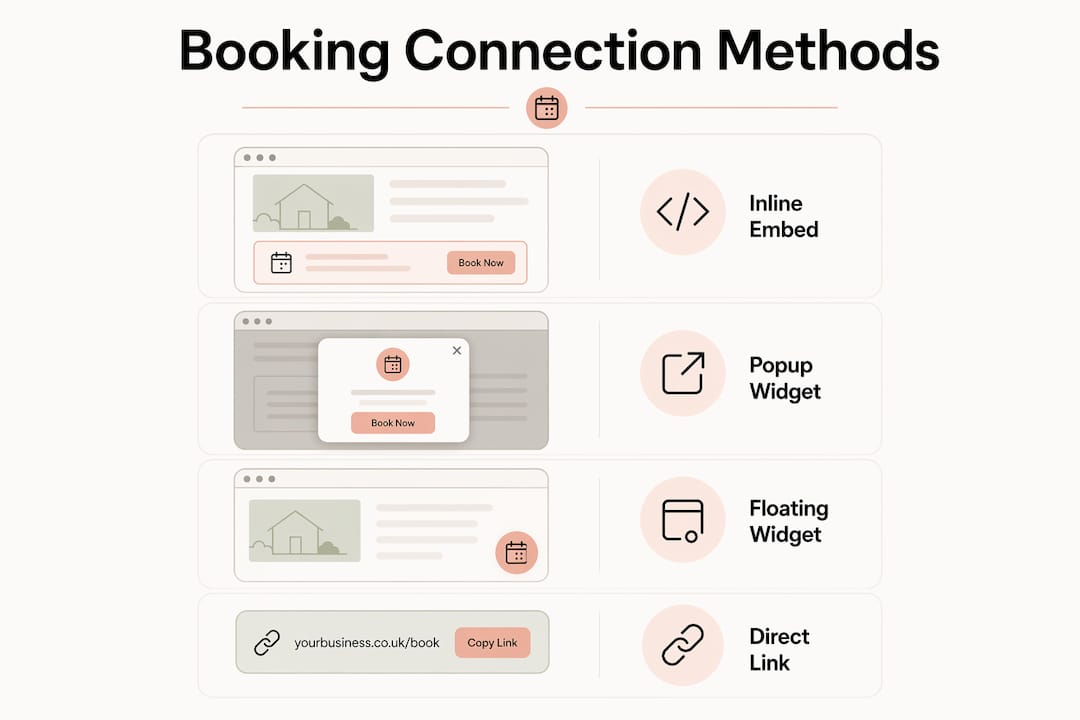
Three primary methods exist for connecting calendar booking to a website: inline embeds, popup widgets, and floating widgets. A fourth option, direct linking via a “Book Now” button, suits specific situations.
Inline embed
An inline embed displays the full booking calendar directly within a page, typically on a dedicated booking or contact page. Clients see available slots without any additional clicks. This method works best when booking is the primary purpose of the page and you want no distractions between the client and the calendar.
Popup widget
A popup widget opens an overlay scheduler when a client clicks a button. The rest of the page remains visible beneath it. This suits service pages where you want clients to read about a service first, then book without navigating away.
Floating widget
A floating widget is a persistent button, usually fixed to the bottom corner of the screen, visible on every page of your site. Clients can initiate a booking from anywhere on your website. This method works well for trades with a simple, single-service offering where the booking path needs no explanation.
Direct link
A “Book Now” button linking to an external booking page is the simplest option technically. It requires no embed code and no developer involvement. The trade-off is redirect friction. Direct booking links can offer a better mobile experience than iframe embeds in some cases, particularly on custom-built sites with limited CMS flexibility.
Pro Tip: Deep-linking lets you pre-fill appointment types via URL parameters. If you have a service page for boiler servicing, your “Book Now” button can link directly to that service type in your scheduling tool, skipping the service selection step entirely.
| Method | Best for | Mobile experience |
|---|---|---|
| Inline embed | Dedicated booking pages | Good with async widgets |
| Popup widget | Service pages with context | Good |
| Floating widget | Site-wide persistent access | Excellent |
| Direct link | Simple or custom-built sites | Excellent |
How to embed a booking calendar on your website
The technical process is consistent across platforms. You copy an embed code from your scheduling tool’s dashboard, then paste it into the correct location on your website.
g1. Copy your embed code
Log into your scheduling tool. Navigate to the embed or widget settings. Select your preferred widget type (inline, popup, or floating). Copy the code snippet provided. Most widgets are under 30KB gzipped, so they add negligible weight to your page.
g2. WordPress
Open the page or post in the Gutenberg editor. Add a Custom HTML block in the position where you want the calendar to appear. Paste the embed code into the block. Save and preview. If your theme uses a classic editor, switch to the Text tab and paste the code directly into the page HTML.
g3. Shopify
Go to Online Store, then Pages. Open the page you want to edit. Click the source code icon (the <> button) in the page editor. Paste the embed code at the point where you want the widget to appear. Save.
g4. Wix
Open the Wix Editor. Add an “Embed Code” element from the Add menu. Paste your widget code into the HTML/Embed panel. Resize and reposition the element to fit your layout. Publish.
g5. Squarespace
Add a Code Block to your page in the Squarespace editor. Paste the embed code into the block. Set the block to display as HTML rather than rendered text. Save and preview.
g6. Webflow
Add an Embed element to your page canvas. Paste the widget code into the Embed settings panel. Publish your site to see the widget live.
g7. Static HTML sites
Open your page’s .html file in a text editor. Paste the embed code directly into the body of the page at the position you want the widget. Save and upload the file to your server.
Pro Tip: Always preview the widget on a real mobile device, not just your browser’s mobile simulation mode. Iframe-based embeds in particular can produce scrolling issues on iOS Safari that do not appear in Chrome’s developer tools.
Common mistakes to avoid:
- Pasting the embed code inside a
<head>tag instead of the<body>. - Using a page builder’s text block instead of an HTML or code block, which strips the script tags.
- Forgetting to check widget appearance after a theme update, which can override custom CSS.
How to sync and configure your booking calendar correctly
The embed is the easy part. Proper calendar syncing is where most local businesses make errors that cost them bookings.
A booking widget reads real-time availability by connecting simultaneously to all linked calendars. If a client books you through your website on Tuesday morning, that slot must immediately block out in your Google Calendar or Outlook, and vice versa. This requires a bidirectional API sync, not a one-way read. A public Google Calendar embed is a read-only view. It shows events but cannot accept bookings or block availability. Trades who confuse the two end up with double bookings.
Configuration steps that matter:
- Connect every calendar you actively use. If you use both Google Calendar for personal appointments and Outlook for work, link both to your scheduling tool.
- Set buffer times that reflect your actual working pattern. A plumber travelling between jobs needs 30–45 minutes between slots. A consultant on video calls may need five.
- Define your booking window. Decide how far in advance clients can book and how close to the appointment time.
- Set your working hours accurately. Clients should never see availability outside the hours you actually work.
Custom styling and white-labelling your booking widget improves client trust by presenting a consistent, professional appearance. Generic third-party branding on a booking widget signals to clients that the business is not fully established. For a trade or local service business, that perception matters. Match your widget’s colours, fonts, and button styles to your website. Most scheduling tools offer this within their settings panel.
Test the full booking flow yourself before going live. Book a test appointment, check that it appears in your calendar, cancel it, and confirm the slot reopens. This takes ten minutes and prevents client-facing errors.
What goes wrong when connecting booking to your website?
Most problems fall into a small number of categories. Knowing them in advance saves time.
Redirect friction is the single biggest cause of lost bookings for local service websites. A client who clicks “Book Now” and lands on an unfamiliar third-party page will frequently close the tab. The booking was never lost because of price or availability. It was lost because of a page transition.
Common issues and their fixes:
- Widget not displaying: The embed code was pasted into a text block rather than an HTML block. Move it to a code or custom HTML element.
- Mobile scrolling problems: Iframe-based embeds can trap scroll behaviour on mobile. Switch to an asynchronous JavaScript widget or use a direct booking link for mobile users.
- Inaccurate availability: The scheduling tool is not connected to your active calendar. Complete the calendar sync setup in your tool’s settings.
- Double bookings: Only one-way sync is active. Enable bidirectional sync so that external calendar events block availability in your booking tool.
- Slow page load: The widget script is loading synchronously. Use a scheduling tool that loads its widget asynchronously to avoid blocking your page render.
Check your booking widget monthly. Scheduling tools update their embed code periodically, and an outdated snippet can break without warning. Set a recurring reminder to test the full booking flow on both desktop and mobile.
Key takeaways
Embedding a booking calendar directly on your website, with bidirectional calendar sync and proper configuration, is the most effective way for local service businesses to increase appointments and reduce lost enquiries.
| Point | Details |
|---|---|
| Embed beats linking | Embedding reduces booking abandonment by 40–60% compared to redirecting clients to external pages. |
| Configuration is the hard part | Syncing calendars, setting buffer times, and defining availability matters more than the embed itself. |
| Bidirectional sync is non-negotiable | One-way calendar connections cause double bookings; always enable bidirectional API sync. |
| Match widget styling to your brand | Generic third-party branding reduces client confidence; customise colours and fonts to match your site. |
| Test on real mobile devices | Iframe embeds can break on iOS Safari in ways that desktop preview tools do not reveal. |
Why most trades get this wrong the first time
The trades and local service businesses I work with consistently underestimate one thing: the gap between “the widget is on the page” and “the booking system actually works.” Getting the embed code onto a WordPress page takes five minutes. Getting the calendar sync right, the buffer times sensible, the mobile experience tested, and the widget styled to match the site takes considerably longer.
The businesses that see real results from online appointment scheduling are the ones that treat the booking flow as part of their client experience, not an afterthought bolted onto the contact page. A client who books a boiler service at 10pm on a Sunday, receives an instant confirmation, and sees the appointment in their calendar the next morning has had a better experience than one who filled in a contact form and waited two days for a reply.
The other thing I see regularly is trades using a generic booking tool with its own branding plastered across the widget. That immediately undercuts the professional impression the rest of the website is working to create. White-labelling is available on most paid scheduling plans and it is worth the cost. A professional website for trades should feel consistent from the homepage through to the booking confirmation email.
My honest recommendation: pick one widget type, configure it properly, test it thoroughly, and then leave it alone. The temptation to switch tools every few months resets your configuration work and risks breaking an integration that was already performing well.
— Ben
How gtwelve supports local businesses with booking integration
gtwelve builds websites for UK trades and local service businesses that are designed to convert visitors into booked appointments, not just generate traffic.
Whether you need a booking calendar embedded into an existing site or a new website built with scheduling integrated from the start, gtwelve handles the technical setup, calendar configuration, and widget styling as part of the build. The result is a booking flow that looks professional, works on every device, and connects directly to the calendars your business already uses. If you want to reduce admin, capture more enquiries, and give clients a better first impression, visit gtwelve to see how we can help.
FAQ
How long does it take to embed a booking calendar?
The embed itself takes approximately five minutes for a non-technical user with admin access. Configuring the scheduling tool correctly, including calendar sync and buffer times, takes longer.
What is the difference between embedding and linking a booking calendar?
Embedding displays the scheduler directly on your page. Linking sends clients to an external booking page. Embedding reduces booking abandonment significantly because clients never leave your site.
Do I need a developer to connect my website to a booking system?
No. Most scheduling tools provide copy-paste embed codes that work in WordPress, Wix, Squarespace, Shopify, and Webflow without any coding knowledge. Custom-built sites may require basic HTML editing.
Why are clients seeing incorrect availability in my booking widget?
Incorrect availability usually means your scheduling tool is not connected to your active calendar, or only a one-way sync is enabled. Enable bidirectional API sync in your scheduling tool’s calendar settings.
Does embedding a booking widget slow down my website?
Modern booking widgets load asynchronously, meaning they do not block your page from rendering. Most widget scripts are under 30KB gzipped, which has a negligible effect on page speed.
Recommended
If this sounds like your website, we can take a look.
Note 05 of 72