Link your website to a document management system
18 June 2026 · 3 min read
Link your website to a document management system

Linking a website to a document management system (DMS) is the process of connecting your online presence directly to your backend document storage and workflow platform. Done correctly, it removes manual data entry, keeps records accurate, and routes enquiries straight into the right folders and workflows without anyone lifting a finger. For UK businesses running on Microsoft 365, SharePoint, or Dynamics 365, this kind of document management integration is no longer a luxury. It is the difference between a website that generates admin and one that generates results.
How to link a website to a document management system
Before you write a single line of code or install a plugin, you need to understand what you are connecting and why. A DMS such as SharePoint, Folderit, or Dynamics 365 stores documents, manages versions, and controls who can access what. Your website, whether built on WordPress, a custom CMS, or a headless framework, is the public-facing layer that captures enquiries, serves content, and presents your brand.
The connection between the two is what makes data flow. Integration typically uses one of three methods: native API connectors, CMS plugins, or middleware platforms known as iPaaS (Integration Platform as a Service). Native connectors deploy quickly and suit straightforward setups. Plugins work well for WordPress sites connecting to cloud document stores. Middleware solutions like Workato, Boomi, or MuleSoft handle complex environments where multiple systems need to talk to each other.

Comparing integration methods
| Method | Best For | Pros | Cons |
|---|---|---|---|
| Native API connector | Dynamics 365 and SharePoint users | Fast to deploy, low maintenance | Limited to supported platforms |
| CMS plugin | WordPress or similar sites | Easy to install, low cost | Fewer customisation options |
| Middleware / iPaaS | Multi-system environments | Flexible, vendor-neutral | Requires technical setup |
Before you begin, you also need to sort out access and permissions. SharePoint, for example, requires admin approval before external applications can read or write documents. Dynamics 365 uses security roles that must mirror what your website is allowed to do. Getting this wrong creates gaps that either block the integration or expose data it should not.
Pro Tip: Map out every data type your website will send or receive before choosing an integration method. Knowing whether you are passing lead forms, signed contracts, or product catalogues will determine which approach fits.
Step-by-step: how to connect your website with a DMS
The process varies by platform, but the logic is consistent. Here is how to approach it for the most common UK business setups.
g1. Define your data flows
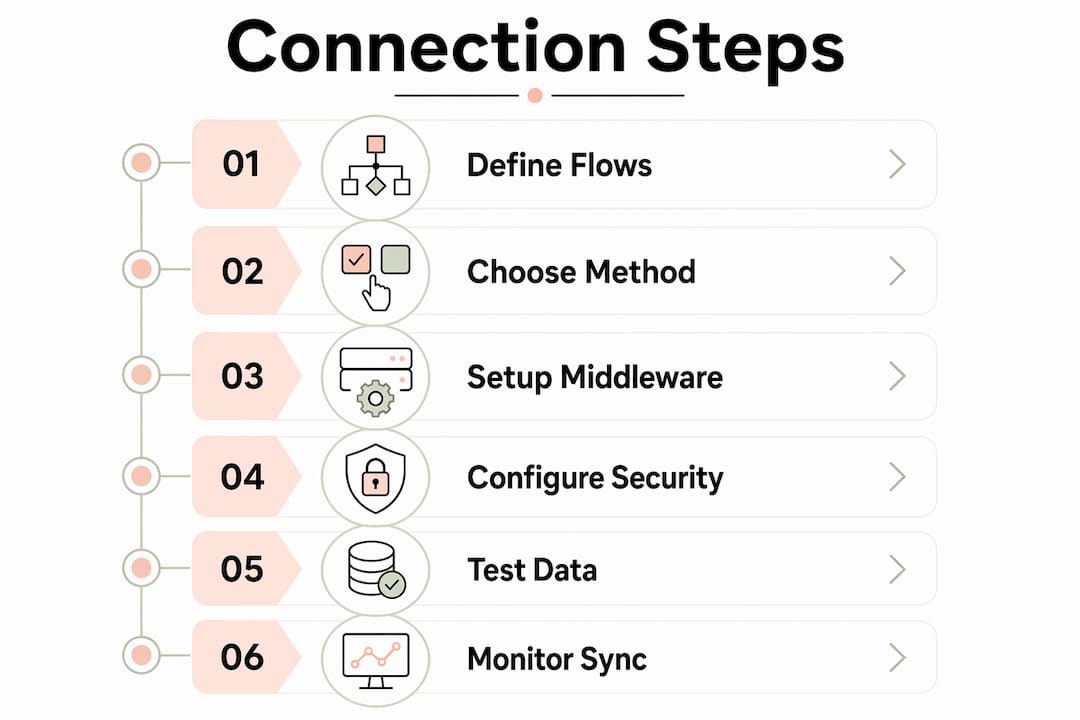
Decide exactly what moves between your website and your DMS. Typical flows include: web form submissions routed to a document folder, signed PDFs stored against a customer record, or quote requests triggering a document template. Write these down before touching any settings.
g2. Choose your integration method
For Microsoft 365 users, SharePoint integration is the standard approach. Dynamics 365 has a native SharePoint connector you activate in settings, which links document libraries directly to CRM records with minimal friction. For WordPress sites, plugins such as those connecting to Google Drive or SharePoint via OAuth handle basic document storage. For anything more complex, a middleware layer is the right call.
g3. Set up your middleware layer (if needed)
Best practice is to use a thin middleware layer between your website and DMS. This protects your front-end code from breaking every time the DMS vendor updates their API. Workato and Boomi both offer pre-built connectors for Microsoft 365, SharePoint, and common CMS platforms. MuleSoft suits larger organisations with more complex requirements.
g4. Configure permissions and security roles
Security role alignment between your DMS and website is not optional. If your website can write to a SharePoint folder, the service account doing that writing needs exactly the right permissions. Too broad, and you create a security risk. Too narrow, and the integration fails silently.
g5. Test with real data
Run end-to-end tests using actual form submissions and document types. Check that files land in the correct folders, that metadata (such as client name or date) is captured accurately, and that version control is working. Test failure scenarios too. What happens if the DMS is temporarily unavailable? Your website should handle this gracefully, not crash or lose data.
g6. Monitor and iterate
Data synchronisation should happen in near real time, with updates ideally every 15–30 minutes for non-urgent data and immediately for status changes. Set up logging so you can see when syncs fail and why.
Pro Tip: Never hard-code API credentials directly into your website’s front-end code. Store them in environment variables or a secrets manager. This is a basic security requirement that many small business setups overlook.
How do you keep data secure after integration?
Getting the integration live is one thing. Keeping it secure and reliable over time is where most businesses fall short. The core principle is straightforward: your website should act as a presentation layer only, pulling data from the DMS rather than storing its own copy. The DMS remains the system of record. Your website displays and collects. It does not own.
This architecture matters for several reasons:
- Version control stays clean because there is only one authoritative copy of every document.
- Compliance is easier to manage when sensitive data lives in one governed location.
- Front-end flexibility improves because you can redesign or replace your website without disrupting document workflows.
Defining a single source of truth per data type is the governance principle that underpins all of this. Your DMS owns operational and document data. Your website owns the presentation and lead capture layer. When these boundaries blur, conflicts and data loss follow.
Identity resolution is the other area that catches businesses out. Poor identity resolution between web leads and DMS records creates duplicate entries and makes it impossible to measure which marketing activity is actually driving revenue. Implement a matching system that ties web enquiries to existing customer records using email address, phone number, or a unique reference.
Treat your integration like a living system, not a one-off project. Schedule quarterly reviews of permission settings, API versions, and data quality. The businesses that get the most from their DMS connections are the ones that maintain them actively, not the ones that set them up and forget.
What goes wrong and how to fix it
Even well-built integrations develop problems. Knowing the common failure points saves significant time and frustration.
API disconnects are the most frequent issue. DMS vendors update their APIs, and if your integration is built directly against those endpoints without a middleware buffer, updates break the connection. The fix is to use a middleware layer that absorbs API changes without requiring front-end code updates.
Data duplication happens when the same lead or document is created multiple times because the identity resolution logic is not tight enough. Unified customer profiles that combine web behaviour with DMS records solve this. The integration should act as a translator connecting what a visitor does on your website with what already exists in your document system.
SEO impact is less obvious but real. Live data feeds from your DMS prevent broken links and outdated content on your website, which directly supports search engine visibility. A website pulling stale data from a disconnected document store will eventually show incorrect information, which damages both user trust and rankings.
The table below summarises the most common integration scenarios and their outcomes:
| Scenario | Common Problem | Recommended Fix |
|---|---|---|
| Direct API connection | Breaks on DMS updates | Add middleware layer |
| No identity resolution | Duplicate records | Implement email or reference matching |
| Website stores own data copy | Version conflicts | Set DMS as single source of truth |
| Permissions not aligned | Silent failures or security gaps | Mirror DMS roles in website service account |
For businesses using automation to route leads and documents from web forms into their DMS, the payoff is significant. Manual admin drops, response times improve, and every enquiry lands in the right place with the right context attached.
Key takeaways
Connecting your website to a document management system works best when the DMS acts as the single source of truth and the website handles only presentation and lead capture.
| Point | Details |
|---|---|
| Choose the right method | Native connectors suit Microsoft 365 users; middleware suits complex multi-system setups. |
| Set permissions before launch | Misaligned security roles cause silent failures or expose data to unauthorised access. |
| Keep DMS as system of record | Your website should display and collect data, never store its own authoritative copy. |
| Resolve identities from day one | Match web leads to DMS records using email or reference to prevent duplicates. |
| Monitor syncs continuously | Schedule regular reviews of API versions, logs, and data quality to catch issues early. |
Why most integrations fail before they start
I have seen a lot of UK businesses attempt to connect their website to a document management system, and the pattern of failure is almost always the same. The technical setup gets attention. The governance does not.
Teams spend weeks configuring SharePoint connectors or setting up Workato workflows, then go live without agreeing on who owns the data, who updates the permission settings when staff change, or what happens when the DMS vendor pushes an update. Six months later, the integration is half-broken, nobody is sure why, and the business has quietly gone back to emailing documents manually.
The businesses that get this right treat the integration as a process decision first and a technical decision second. They define what data lives where, who is responsible for it, and how changes get communicated across teams. The technology follows that clarity. It does not create it.
I also think the obsession with native connectors is overrated for most UK SMEs. Yes, the Dynamics 365 and SharePoint native link is quick to set up. But if your business grows, changes CMS, or adds another tool to the mix, that direct connection becomes a constraint. A thin middleware layer costs a little more upfront and pays back significantly when you need to change anything. Vendor lock-in is a real cost that rarely appears on the initial project estimate.
The other thing worth saying plainly: your website redesign and your DMS integration should be planned together, not sequentially. I have worked with businesses that rebuilt their website beautifully, then discovered the new platform could not connect to their document system without a complete rework. That is an expensive lesson. If you are redesigning your website in 2026, document management connectivity should be a requirement in the brief, not an afterthought.
— Ben
How gtwelve connects your website to your document workflows
gtwelve builds websites for UK service businesses that do more than look good. We connect enquiry forms, quote requests, and client documents directly into your existing tools, including Microsoft 365, SharePoint, and Dynamics 365.

If you are ready to sync your website with document systems and reduce the manual admin that comes with every new enquiry, we can help you plan and build the right connection for your setup. We handle the technical architecture, the permissions, and the ongoing monitoring so you do not have to. Speak to gtwelve about your integration project today.
FAQ
What does it mean to link a website to a document management system?
It means creating a live connection between your website and your DMS so that data, documents, and enquiries flow automatically between the two without manual copying or uploading.
Which DMS platforms work best with UK business websites?
Microsoft SharePoint and Dynamics 365 are the most common choices for UK businesses, with native connectors available for both. Folderit suits smaller teams needing simpler document storage.
Do i need a developer to connect my website with a DMS?
For native connectors like Dynamics 365 with SharePoint, a developer is not always required. For middleware or custom API setups, technical expertise is needed to configure and maintain the connection reliably.
How often should data sync between my website and DMS?
Near real-time synchronisation is best practice, with routine data updating every 15–30 minutes and status changes syncing immediately to keep records accurate.
What is the biggest risk of a poorly built integration?
Duplicate records and misaligned permissions are the two most damaging outcomes. Duplicates corrupt your data and make ROI measurement unreliable. Permission mismatches either block the integration or expose sensitive documents to the wrong people.
Recommended
If this sounds like your website, we can take a look.
Note 36 of 72